
Assets
Import files into a project, organize them, and check what the project uses.
The Assets panel holds every file a project draws on. The sidebar groups them into six categories:
| Category | Holds |
|---|---|
| Images | Backgrounds, sprites, and other still images |
| Media | Audio and video |
| Data | JSON files and blueprints |
| Fonts | Font files |
| Models | Live2D, Spine, and other runtime-drawn models |
| Other | Anything the categories above do not cover |
Import
Drag files onto the panel, or use the import button. Dropping a folder imports its contents and keeps the folder structure.
Import Remote Asset takes a URL. The file is downloaded into the project and stored like any other asset, with its origin recorded, so the project stays usable offline.
A file the engine cannot play is reported on import, and Studio offers to convert it. Support depends on the container and on the codec of each stream inside it, not on the file extension.
Models are imported through their own wizard, which claims the manifest and the files beside it. See Model Runtimes.
Organize
Assets can be placed in groups, renamed, replaced, and deleted. Deleting is recorded in the workspace history and can be undone.
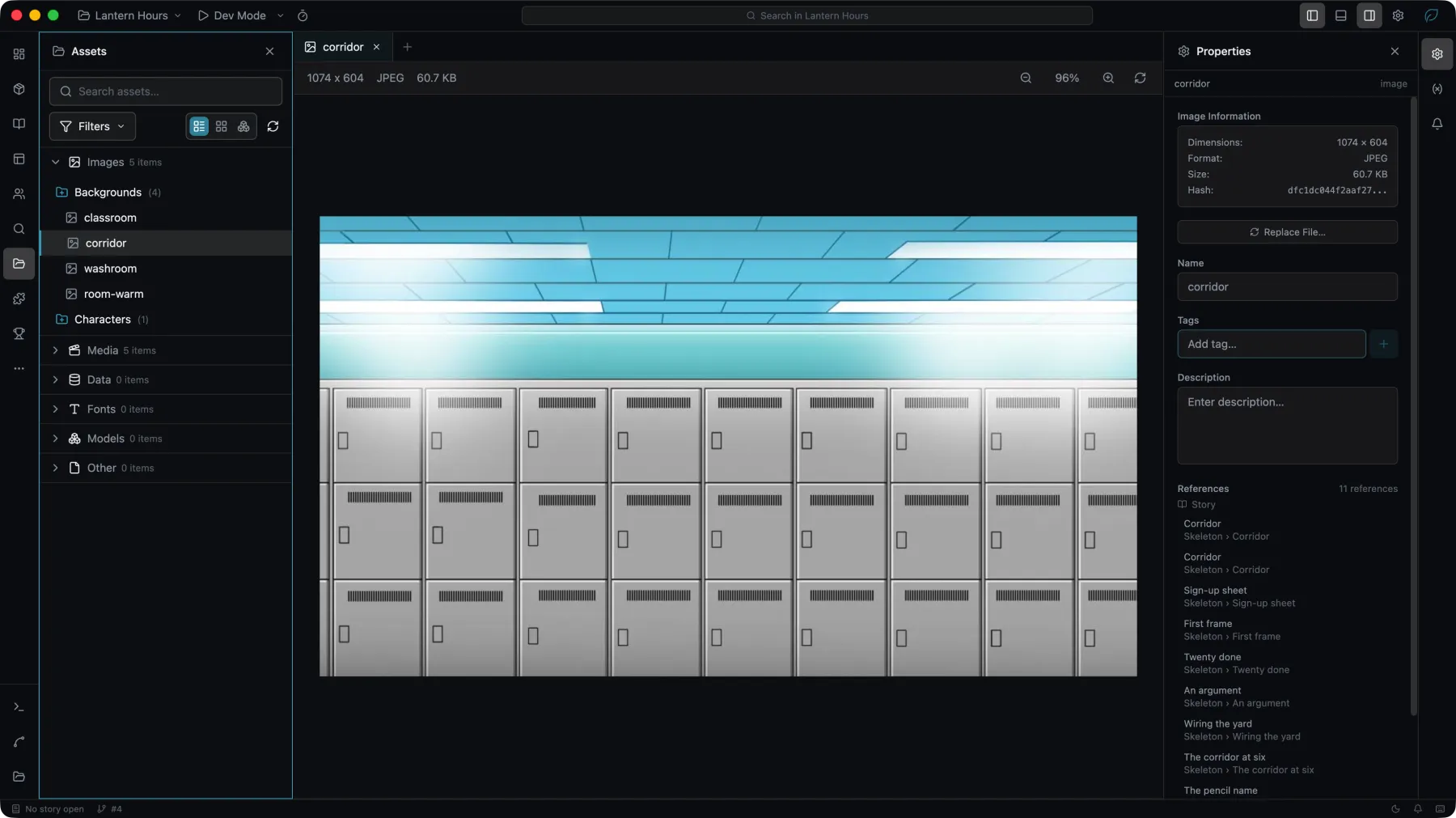
Selecting an asset shows its information in the Properties panel. Dragging one onto a UI canvas creates a widget linked to it.
Overview
The Overview view reports the asset library as a whole: how many files there are, how many are referenced by the project, and the size of each group.
It also reports what the project would occupy if unreferenced files were removed. This is a measurement of the project folder. A production build already leaves out every file that build does not reference.