
Workspace Overview
The activity bar, editors, Properties panel, and bottom bar.
The workspace has an activity bar, sidebars, an editor area, a Properties panel, and a bottom bar. The activity bar selects the tool shown in the left sidebar. Pages, story scenes, assets, and Blueprints open as tabs in the center.
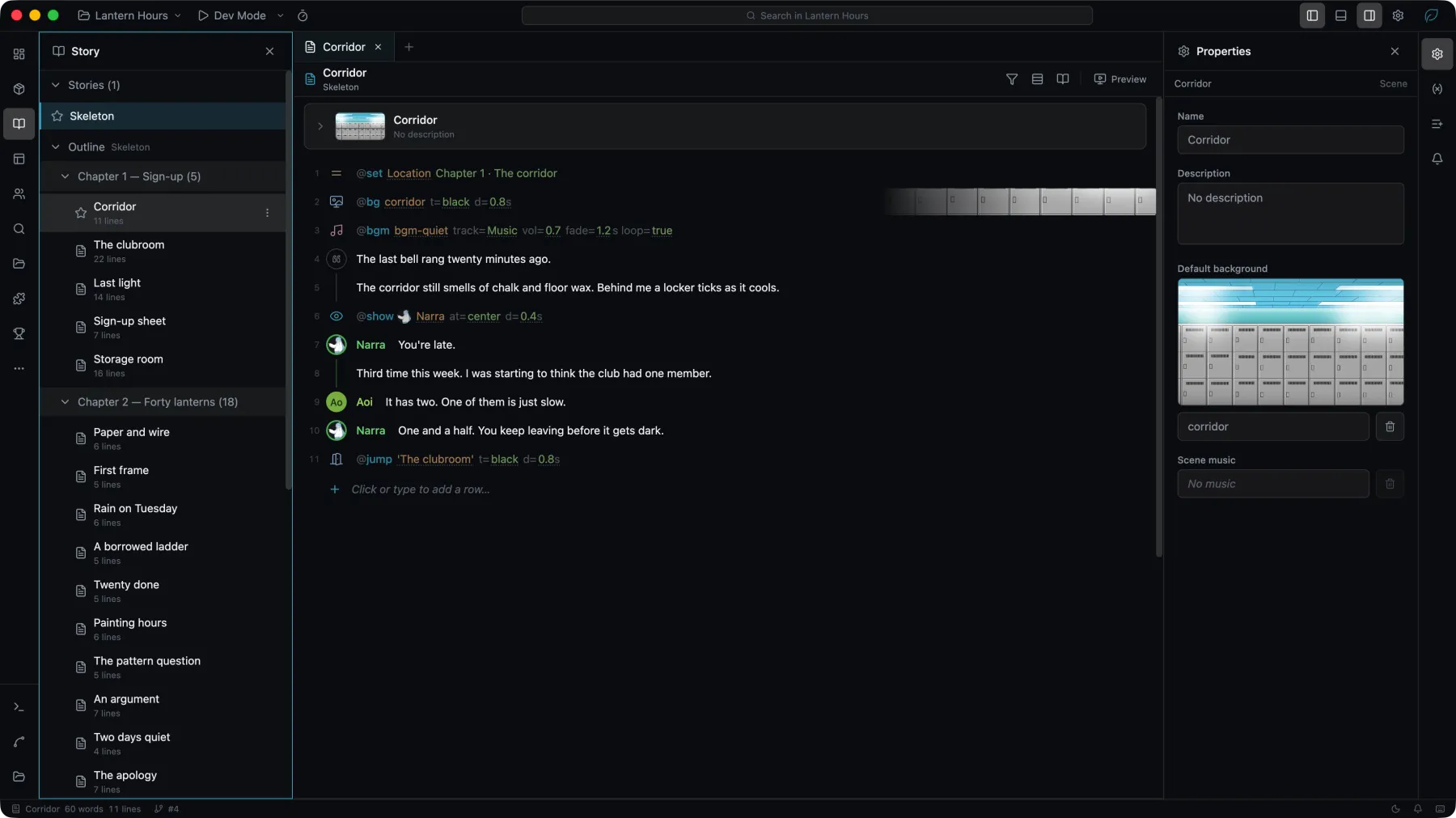
Main areas
| Area | Purpose |
|---|---|
| Left activity bar | Switch between Dashboard, Project, Story, Search, UI, Characters, Assets, Localization, Voice and Plugins |
| Left sidebar | Browse and create content for the current tool |
| Center editor area | Open pages, scenes, asset previews, and Blueprints in tabs |
| Right sidebar | Properties edits the selected page, widget, asset, or story action; Variables and Dictionary sit under it on the same rail |
| Bottom bar | Show the console, build output, the Problems panel, motion tools, and the assets panel |
| Top bar | File actions, version control, and the run and build controls |
The left rail
Ten panels are registered on the left rail. Three are worth naming because they are easy to miss:
- Dashboard is first on the rail (it sorts ahead of everything else) and opens as a tab rather than a sidebar — the project's scale, its cast's line counts, and recent writing activity.
- Search looks across the project rather than within one editor.
- Voice is the voice-line library: the takes recorded for each line, per dub language. It starts folded into Collapsed panels, the last entry on the rail, together with Localization and Plugins.
Which panels are on the rail is yours to set; a plugin can add its own through app.services.ui.panels.
Problems
The Problems panel opens in the bottom bar, beside the console, and lists what the project checks found. The checks run by themselves shortly after each edit, and the status bar shows how many errors and warnings there are. Hovering the count also shows how many minor warnings and info there are, and clicking it opens the panel.
- The list shows the findings in the Whole project, the Open editors or the Current editor, filtered by level and grouped By rule or By location.
- Selecting a finding opens the place it is about, such as a story row, a widget on its page, a node in its blueprint or a row in the translation table.
- The ? on a finding opens About this rule: what the rule found, what it does to the game, and how to fix it.
- A story row with a finding carries a mark in the color of its most severe finding. Hovering the mark lists the findings, and clicking it opens the panel. The blueprint editor lists the findings in its blueprint under the canvas.
- Run again in the panel, or the Check project command, checks the whole project again and re-reads the asset files on disk, including files changed outside Studio.
- Check settings opens Project → Project → Project check, where each rule's level is set.
Levels
Each rule reports at one of four levels, or is set to Off and does not run.
| Level | Counted in the status bar | Stops a production build |
|---|---|---|
| Error | Yes | Yes |
| Warning | Yes | When Stop the build on is Warnings and errors |
| Minor warning | No | No |
| Info | No | No |
A production build runs the checks while Check before building is on. Both settings are under Project → Project → Project check, and Stop the build on is Errors until it is changed.
Minor warning is for problems of low priority. Missing translation, Missing voice, Unused asset, Unused variable and Unreachable page report at this level unless the project sets another, and a command-line check never fails on it.
Studio 1.4.5 and earlier do not have Minor warning. They report a rule set to it at the rule's default level, and remove that setting from the project when any project check setting is changed in them.
Selection and properties
The Properties panel follows the current selection:
- Select text on a UI canvas to edit its content, layout, and appearance.
- Select an image in Assets to view its asset information.
- Select an action in a story scene to edit that action's parameters.
When the panel reports that nothing is selected, select an item in the current editor or sidebar.
Editor tabs
Opening content creates a tab in the center editor area. Tabs can be closed and reopened, and Ctrl+Tab moves through recently used tabs. Studio restores supported tabs when the workspace is opened again.
A modified indicator beside a tab title means the content has not been written to the project files yet. Studio saves most edits automatically. Check notifications and diagnostics before starting Dev Mode or a build.
Adjust the workspace
- Drag an area's edge to resize a sidebar or the bottom bar.
- Restore a hidden area from Window → Show Sidebar, Show Right Bar, or Show Bottom Bar.
- Closing a panel does not delete project content.
- The console is in the bottom bar and carries detailed Dev Mode and build output.
The canvas is a layout tool. Blueprint execution, node tracing, and live game state are shown in Dev Mode.
Next step
Open the UI panel and create your first page.