
Run and Package
Check a project in Dev Mode and build the files distributed to players.
Studio has two output paths: Dev Mode for checks during production, and a production build for distributable files. Export Project hands over the editable Studio project and does not produce a player build.
Run in Dev Mode
Start Dev Mode from any of these:
- The play button in the upper-right corner of the UI editor, which starts from the current Page or Game UI.
- The Run button in the top bar, with Dev Mode selected.
- The Develop menu.
Dev Mode opens in a separate window. Reload the running content after changing a UI document or a Blueprint. Runtime logs and node traces appear in the debug tools and the console.
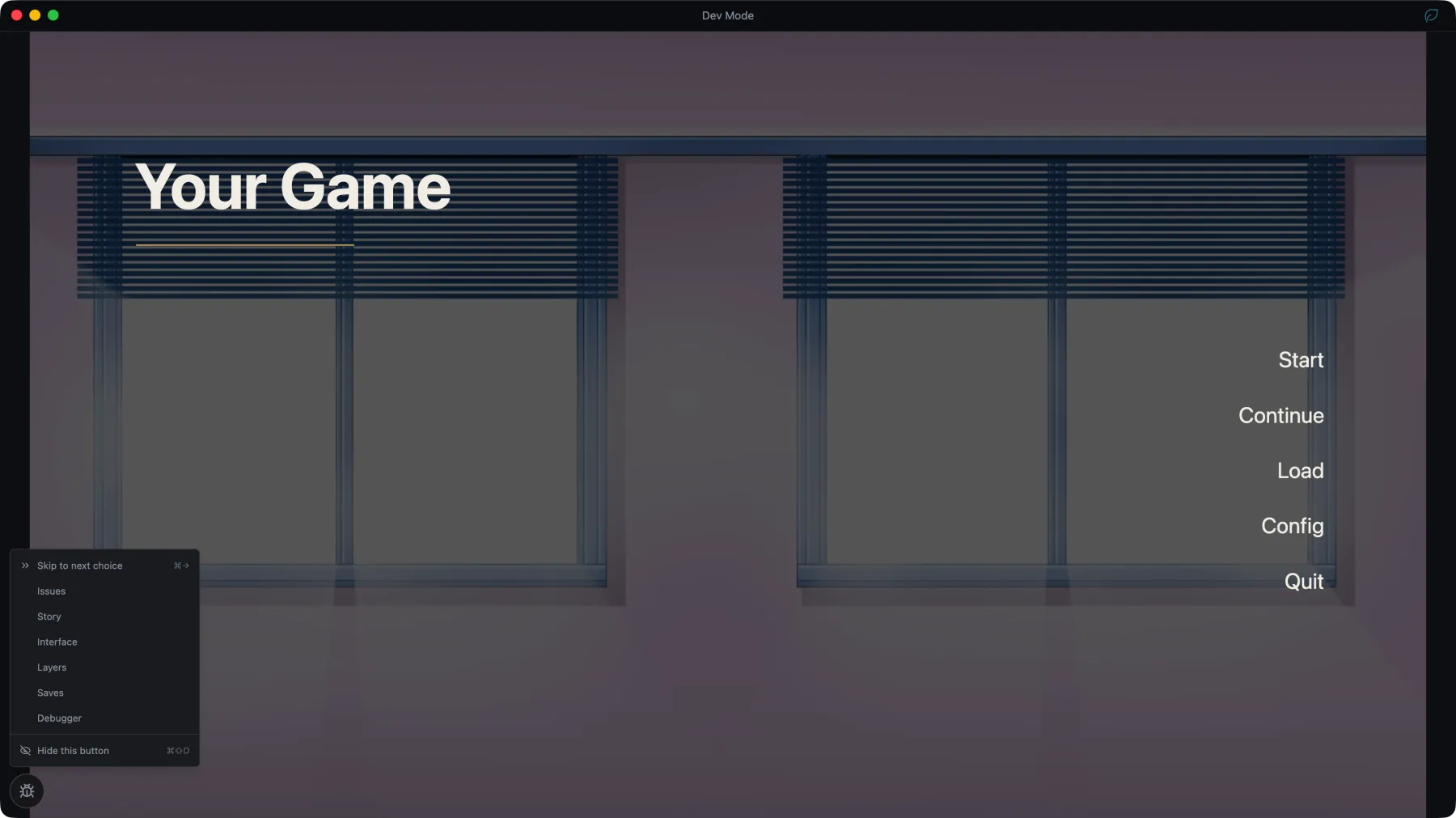

Choose Dev Mode again to stop the session.
The editor canvas does not execute the complete game. Check page navigation, story progression, widget events, and saves in Dev Mode.
Build for distribution
Open the build dialog
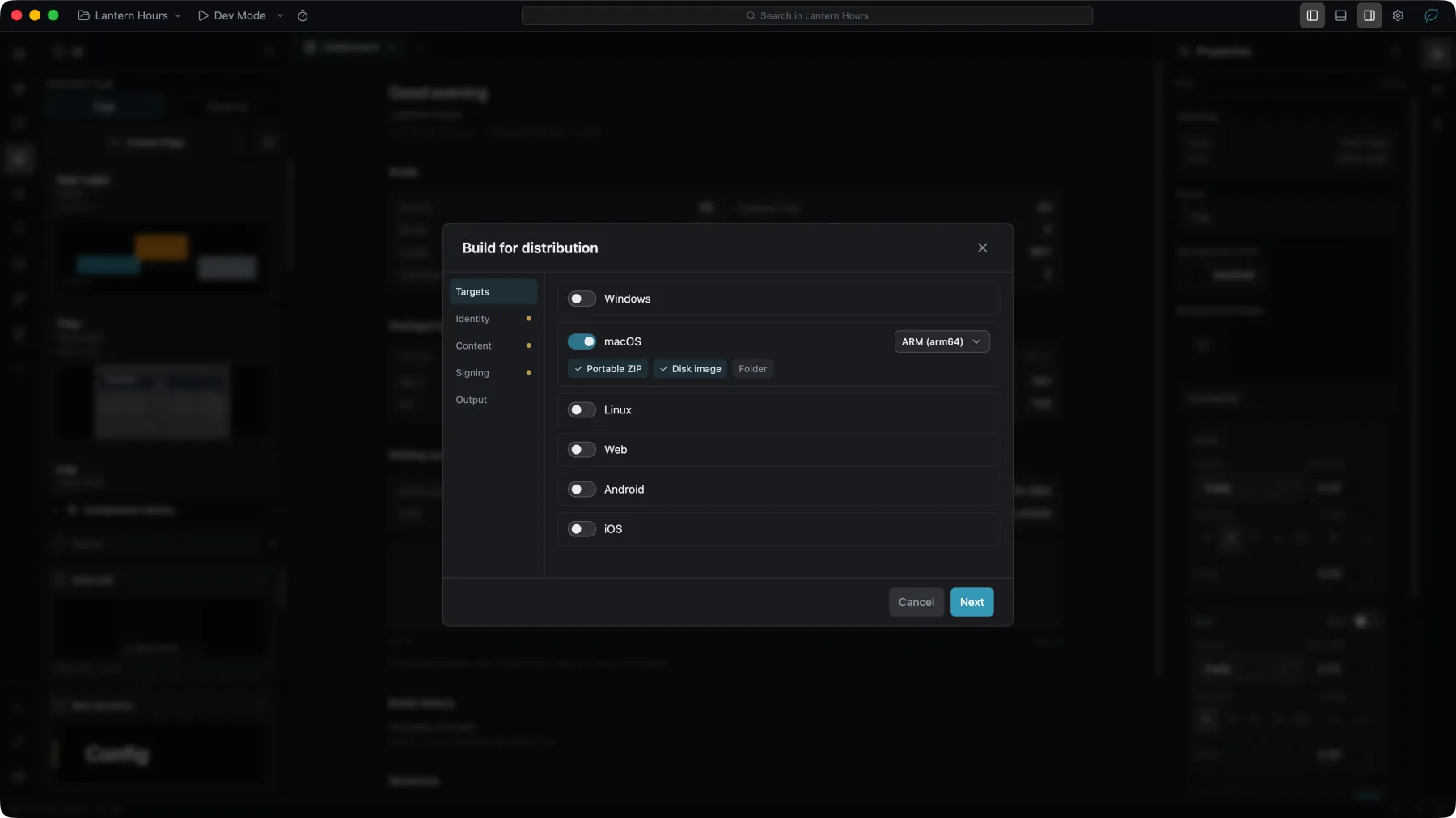
Choose Production Build… from the Run dropdown in the top bar, or from the Develop menu. The dialog is titled Build for distribution.
Its rail has up to seven sections — Variant, Targets, Identity, Content, Plugins, Signing, Output. Variant appears only for a project with more than one edition to build, and Plugins only where an installed plugin asks for a value. The steps below walk the ones every project meets.
Select targets
Choose a platform, format, and architecture. The available targets depend on the host system:
- Windows artifacts can be built on any supported desktop system.
- macOS artifacts can be built on any supported desktop system. On a Mac every format and architecture is offered: Studio itself runs only on Apple Silicon, and packages for Intel Mac players just the same. On Windows only
zipis offered, built as a universal app by default so that it runs on every Mac. It cannot carry a certificate signature, so players allow its first launch under System Settings → Privacy & Security. - Linux artifacts can be built on any supported desktop system. On Windows,
zipandappimageare offered. - Web, Android, and iOS artifacts can be built on any supported desktop system.
Android produces an APK for direct installation, an AAB for the Play Store upload, or both. iOS produces an IPA.
Check identity and content
Confirm the version, product name, App ID, copyright, and icons. Use a semantic version such as 1.0.0.
The dialog also lists the bundled plugins, locales, network policy, and asset protection. A Web build is a deployable static site, and asset protection does not apply to it. Asset protection does not apply to Android and iOS builds either.
Choose an output directory
Choose a writable directory. Existing artifacts with the same names are overwritten, and the Artifacts list names the files the selected targets will produce before the build starts. Two switches sit here as well: open the output folder when the build finishes, and — for a variant that has any — build this variant's DLC alongside it, each into its own folder beside the installers.
How much the shipped assets are compressed is not decided here. It belongs to the project, under Project → Settings → Compression, and it is one switch each for images, audio and video.
Start the build
Resolve the blocking findings, then choose Build. The build runs in the background, and progress and detailed output appear in the console.
To build without opening Studio, see Command-Line Builds.
To change a game that has already been released, see Patches.
Preflight findings
The dialog separates blocking findings from warnings:
- No targets, an invalid version, or an unwritable output directory blocks the build.
- A missing icon does not block the build. The default Electron icon is used instead.
- Desktop artifacts are not signed unless signing is configured, and players may see a system security warning on first launch.
- A project with no distribution key gets a warning on the Content page for a desktop build: the game it produces will not accept patches. Create beside the warning creates the key. See Patches.
- The first build for a platform downloads the files that platform needs and takes longer than later ones.
Export the Studio project
To hand over or archive the editable project, choose File → Export Project. Studio writes an .nlspkg package, which the recipient adds from the launcher into an empty directory.
An .nlspkg holds project content. It is not a release build and is not given to players.